Random Group Generator
Choose how many groups, then press Make groups. Open Class list to put your own names in.
Sample class: 24 students, 6 groups of 4.
- Olivia
- Noah
- Charlotte
- Jack
- Mia
- Leo
- Aisha
- Henry
- Zara
- Oliver
- Isla
- Arjun
- Ruby
- Lachlan
- Mei
- Ethan
- Amelia
- Kai
- Sofia
- Hamish
- Priya
- Ali
- Matilda
- Tevita
6 groups of 4
More classroom games
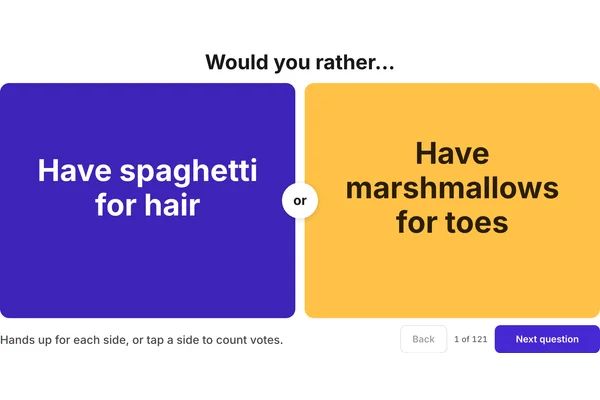 Would You RatherTwo choices on the board, the class picks a side and says why.
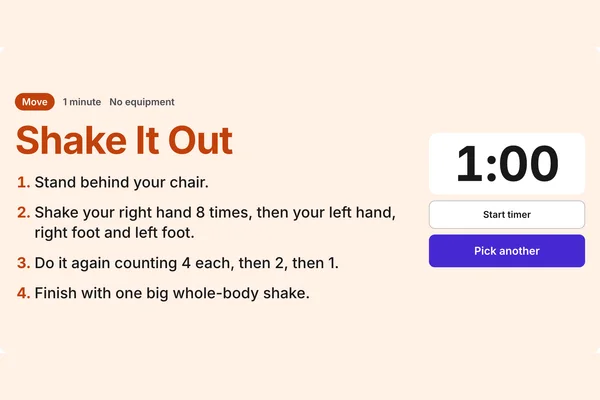 Brain Break PickerPress once for a no-prep brain break with the steps and a timer.
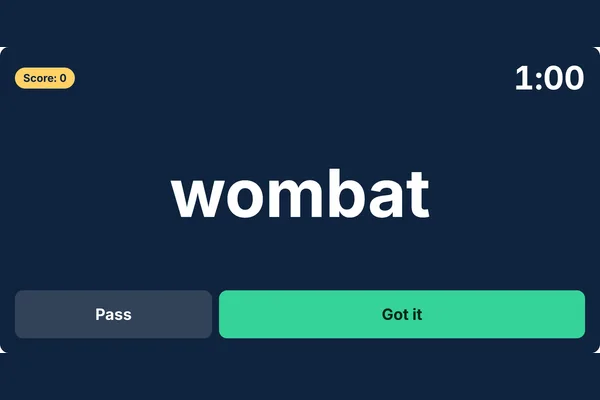 Hot SeatOne student faces the class, the word is behind them. Use your own word list.
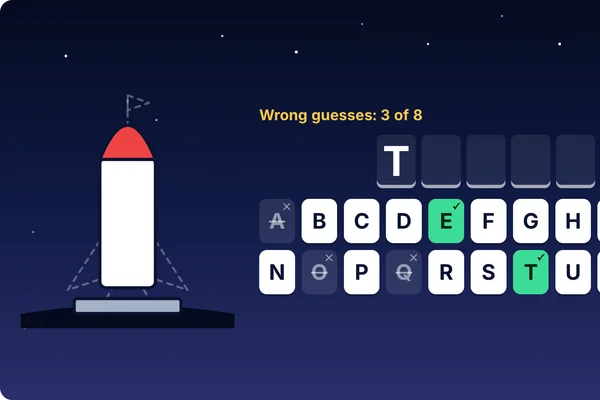 HangmanGuess the word letter by letter before the rocket is built. Word lists by year level.
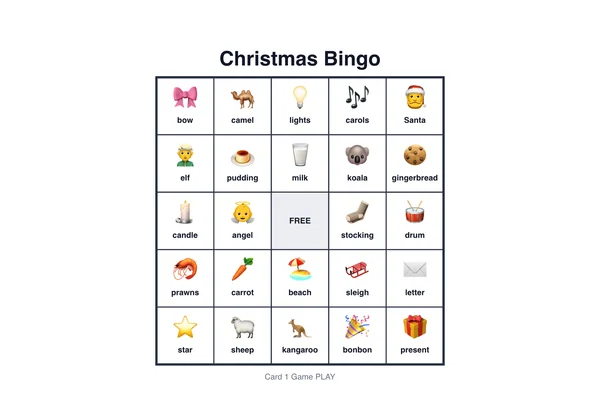 BingoCall the game on the board. Students play on printed cards, or scan for a card on their own device.
- All classroom gamesQuiet games, five-minute fillers and no-equipment games, sorted by the moment.
Ways to use a random group generator in class
- Sport and PE teams: choose the number of teams, press Make groups, and name the teams by colour to match the bibs in the sports shed. Keep apart is handy for the two students who should not be on the same team.
- Reading and maths rotations: make four or five random groups for the week, then swap a name or two by hand before you print the list for the wall.
- Lab partners and think, pair, share: choose Students per group and set it to 2. With an odd number in the room, one group of three is made.
- Table groups for the term: use Keep together for a student and their buddy, lock the tables you are happy with and shuffle the rest.
- Excursion and camp groups: mark who is away, make the groups, and copy the list into the note for parent helpers.
To choose one student at a time, for questions or classroom jobs, the random name picker uses the same class list. More games for the board are on the classroom games page.
Random teams with names
Groups can be called Team 1, Team 2 and so on, named by colour (Red, Blue, Yellow, Green) or named after Australian animals (Kangaroos, Koalas, Wombats, Emus). Choose under Group names in the options. Each team keeps its own bib colour on the board.
Frequently asked questions
How do I make random groups from my class list?
Open Class list in the options and type or paste the names, one per line or separated by commas. Choose the number of groups, or the number of students per group, and press Make groups. Sign in and the class is saved to your account, so next time it is already there, on any device.
What happens when the class does not divide evenly?
The groups are made as even as they can be, and the board tells you the sizes before you press the button. If you choose students per group, anyone left over joins a group. For example, 23 students in groups of 4 makes 2 groups of 4 and 3 groups of 5, so nobody is left in a group of 3.
Can I keep certain students apart or together?
Yes. Open Rules under the board, choose two students, choose Keep apart or Keep together and press Add pair. Add as many pairs as you need. The pairs are saved with the class and are used every time you make or shuffle groups.
What if the pairs cannot all be kept?
The groups are still made, and a note under them names each pair that could not be kept apart or together. This happens when the pairs contradict each other or there are too few groups, for example three students who must all be apart with only two groups.
Can I change the groups after they are made?
Yes. Tap one name and then another to swap them. Tap the padlock on a group to lock it, and Shuffle again deals everyone else into new groups while the locked groups stay as they are.
Can I print or copy the groups?
Yes. Copy puts the groups on the clipboard as plain text, ready to paste into a document, an email or a slide. Print opens the print window with the groups set out on a sheet.
What about students who are away?
Open Class list, choose Away today and tap their names. They are left out of the groups for today and come back by themselves the next day. The same list of who is away is used by the name picker.